Use the mini toolbar
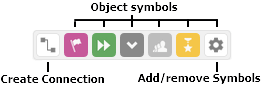
You can model very effectively using the mini toolbar. The mini toolbar provides you with exactly the object symbols that can be linked to the selected object using a connection.
Prerequisite
The mini toolbar is only available if Smart Modeling is disabled.
In an open model, click an object symbol. The mini toolbar is shown.
In the mini toolbar, click the object symbol you want to place.
If required, select the relevant connection type.
Click the position in the modeling area where you want to insert the object symbol. The object symbol is placed together with a connection to the source object.
Enter a name for the object. If you enter an existing name, existing objects are offered for selection. You can create a new object, select an existing one, or create a new one with the same name.
Press Enter.
The new object symbol is placed.
To configure the mini toolbar, click  Add/Remove symbols.