Run semantic checks for open models
You can check whether a model complies with the modeling conventions.
Open a model in the Edit model view.
Click
 Semantic checks. The Semantic checks bar opens.
To change the output format, click
 Select output format.
Select the required semantic check. Only the semantic checks that can be applied to items you selected are available.
Click
 Run the selected semantic check. The Semantic check is executed and the result is displayed. You can download (
 ) the result.
If errors, warnings, or notes were found, the number of problems found is displayed in the Semantic checks bar.

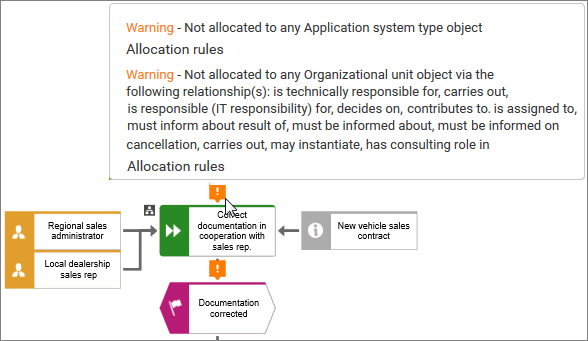
The affected objects are marked accordingly in the model.
 Error,
  Warning,
  Note.
Note.Click
 Maximize to display the Semantic checks bar in full size.
To obtain a better overview, click errors, warnings, or notes to display only one category at a time. Click Show all to display all entries again.
In the Semantic checks bar, click the element you want to find in the model. The element is selected in the model.
To display additional information about the selected element, position the mouse pointer over the error, warning, or note marker. A pop-up with the details is displayed.
In the Semantic checks bar, click
 Expand in the row of an error, a warning, or a note. Detailed information is displayed, such as the rule on which the entry is based.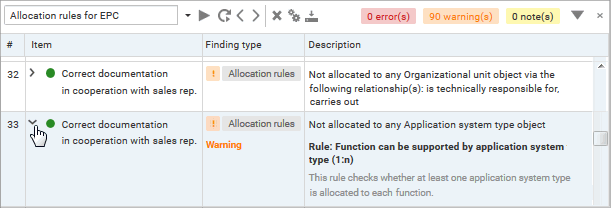
Click
Go to next error, warning, or note in the toolbar. The next entry is highlighted. The corresponding element is moved to the visible model area, if it is not yet visible there.Use these functions to find and correct the problems, then save the model.
To ensure that your changes solved the problems, click
 Rerun the last semantic check. The previous semantic check is performed independently of the current selection.
Check whether all problems have been corrected. If not, proceed with troubleshooting.
You have corrected modeling errors using the semantic check.
To remove the results from the last semantic check, click  Clear semantic check result.